


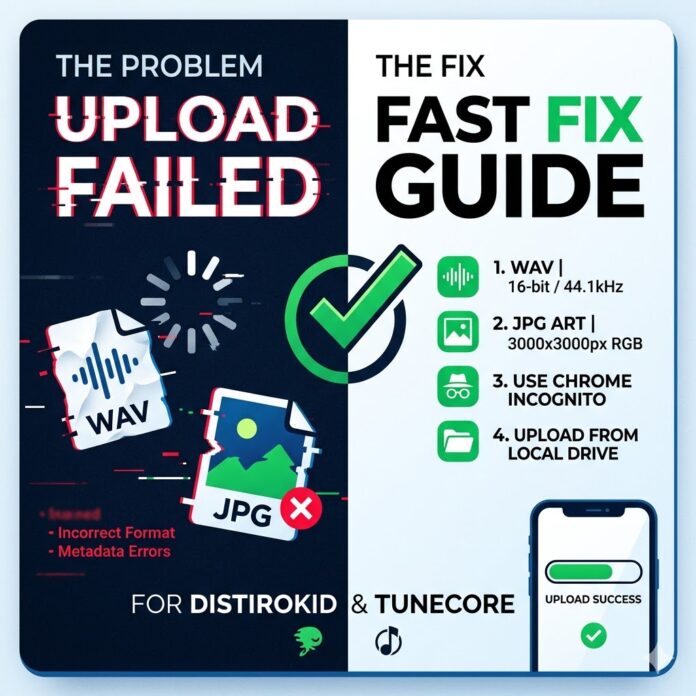
We’ve all been there: you’ve spent weeks finishing a track, the artwork is dialed in, and you’re ready to finally hit “distribute”—only for DistroKid or TuneCore to hit you with a red error bar or a progress circle that just spins forever. It’s enough to make you want to throw your laptop across the room.
The good news? Most of these “errors” aren’t actually problems with your music. They’re usually just tiny technicalities that the platform’s automated system can’t wrap its head around.
Here’s how to bypass the bots and get your music live without the headache.
1. The “Infinite Loading” Glitch (DistroKid)
If your upload bar freezes at 99% or turns red, it’s rarely a server crash. Usually, it’s a “handshake” issue between your browser and the file.
-
Get off the cloud: Don’t try to upload directly from iCloud, Dropbox, or an external drive. The connection “blips” and kills the upload. Drag your WAV and JPG to your Desktop first.
-
The “Incognito” Trick: Browser extensions (like ad-blockers) often mess with the upload script. Open a Chrome Incognito window, log back in, and try again. It fixes 90% of stuck uploads instantly.
-
Format Check: If you’re on a Mac/iPhone, ensure you aren’t trying to upload an
.HEICphoto or an.m4aaudio file. The system wants old-school JPGs and WAVs.
2. TuneCore’s “Invalid File” Rejection
TuneCore is the “strict parent” of distributors. If your audio specs are off by even a hair, it’ll spit it back out.
-
The 16/44 Rule: Your audio must be 16-bit and 44.1 kHz. If you exported at 24-bit or 48 kHz (standard for film/video), TuneCore will reject it.
-
Don’t just rename the file: You can’t just change “song.mp3” to “song.wav” by typing it. You have to go back into your DAW (Logic, Ableton, FL Studio) and re-export with the correct settings.
3. The “Artwork Denied” Nightmare
Both platforms use AI to scan your cover art, and it’s surprisingly picky. If your art gets rejected, it’s usually for one of these “hidden” reasons:
-
The Pixel Count: It must be a perfect square. Even if it’s 3000 x 2999, it’s a “no.” Stick to exactly 3000 x 3000.
-
No “Extra” Info: Don’t put your Instagram handle, your website, or “New Single 2026” on the art. Stores only want to see the Artist Name and the Song Title. Anything else looks like an “ad” to them.
-
CMYK vs. RGB: If you had your art designed for a physical CD or vinyl, it might be in CMYK color mode. The web needs RGB. If you’re stuck, just “Export As” a new JPG in any basic photo editor.
4. “My Song is on Someone Else’s Profile!”
This is the most frustrating “error” because it usually happens after you’ve successfully uploaded.
-
DistroKid users: Use the “Fixer” tool (under the “Goodies” menu). You can tell them exactly which Spotify/Apple IDs are yours, and they’ll move the song for you.
-
TuneCore users: Make sure you’ve grabbed your Spotify Artist URI before you upload. Pasting that into your account settings “locks” your music to your specific page so it doesn’t wander off to another artist with the same name.
The “Quick Fix” Checklist:
-
Audio: 16-bit, 44.1kHz WAV.
-
Art: 3000x3000px, RGB, no social media handles.
-
Upload: From your local hard drive using a Chrome Incognito tab.













 🔥 Limited Time: Get 55% OFF All Plans - Ends in: